
What is QoS and how do I set it up
QoS (Quality of Service) is a router feature that helps you prioritise internet traffic, ensuring smoother performance for tasks like video calls, gaming or streaming — especially when multiple devices are online.
Setting up QoS can help reduce lag, buffering and dropped connections by giving your most important devices or apps the bandwidth they need.
Below is a simple step-by-step guide to setting it up.
Slow Internet Connection?
Let Swoop get you connected FAST! Check if your address can get fast and reliable internet.
Enter your addressWhat does QoS do
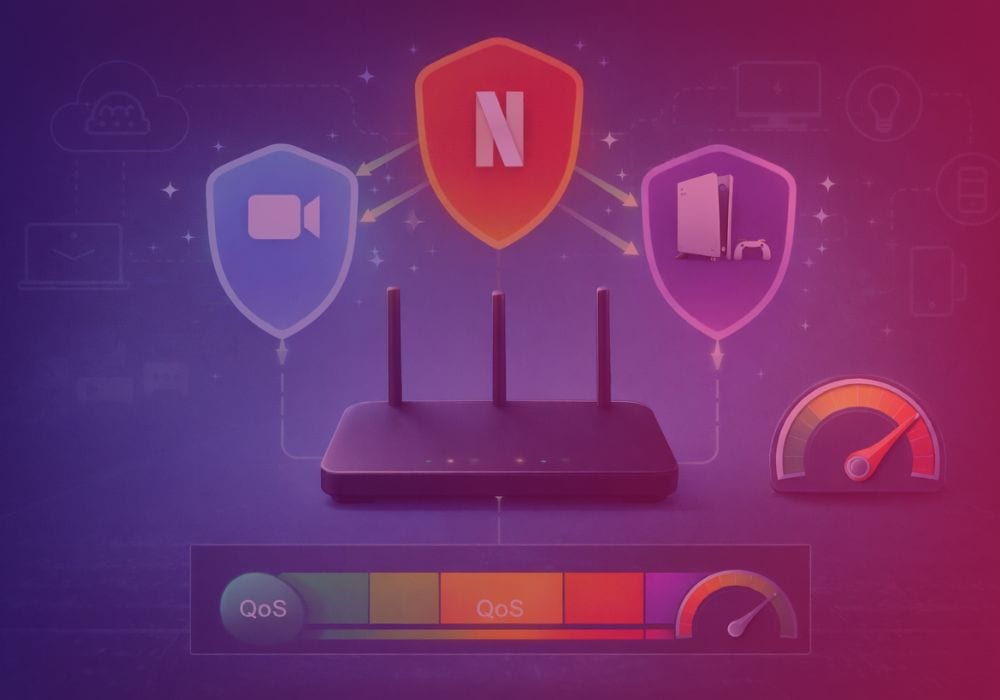
QoS lets you tell your router what matters most. For example:
- Prioritise Zoom calls over downloads
- Give your gaming console first access to bandwidth
- Limit smart TV streaming during work hours
This is helpful if you have limited bandwidth or lots of devices competing for internet at once. QoS improves how your home network shares bandwidth, but it cannot fix congestion or speed limitations coming from the wider nbn network.
When should you use QoS
QoS is most useful if:
- Multiple people are streaming or gaming at the same time
- You work from home and rely on video calls
- You notice lag when large downloads are running.
How to set up QoS
The steps to set up QoS vary depending on your router, but here’s a general guide:
1. Log into your router
- Open a web browser
- Type your router’s IP address (usually 192.168.0.1 or 192.168.1.1)
- Enter your username and password (often found on the bottom of the router)
2. Find the QoS settings
- Look for a section called QoS, Traffic Control, or Bandwidth Control
- It might be under Advanced Settings or Network Settings
3. Choose your priority devices or applications
You can usually set priorities by:
- Device (e.g. your laptop, PS5 or smart TV)
- Application (e.g. Zoom, Netflix, online games)
- Port numbers (for more advanced setups)
4. Save and reboot if needed
Once saved, your router may need a reboot. Then you’re good to go.
Tip: You could check your router’s manual or the manufacturer’s website for model-specific instructions, especially for setting up QoS, which varies across brands.
Example: QoS setup on a TP-Link router
Here’s an example of how QoS is typically set up on a TP-Link router.
- Log in to the router interface
- Go to Advanced > QoS (or Bandwidth Control on some models)
- Enable QoS and enter your total download and upload speed
- Add priority rules based on device or application
- Save settings
Tip: Make sure you enter your correct internet speed when setting up QoS. You can check this at http://speed.swoopbroadband.com.au/
QoS works best when paired with an nbn plan that has enough speed and capacity.
How traffic optimisation works on eero 7
If you’ve chosen a Swoop nbn plan with our optional eero 7 Wi-Fi 7 router, here’s how its built-in traffic optimisation features help manage congestion across your home network.
The eero 7 Wi-Fi 7 router does not use traditional manual QoS rules. Instead, it uses Smart Queue Management (SQM) to automatically manage and balance traffic across your network.
This helps reduce lag, improve video calls, and keep gaming smooth when multiple devices are online.
How to enable it
- Open the eero app.
- Go to Settings.
- Tap eero Labs (or Advanced settings, depending on app version).
- Turn on “Optimise for conferencing and gaming” (this enables Smart Queue Management).
Once enabled, eero automatically prioritises real-time traffic like video calls and gaming without needing manual device rules.
Common QoS mistakes
Even when QoS is enabled, a few common errors can limit how effective it is.
Entering incorrect download or upload speeds
QoS relies on accurate speed values to manage traffic properly. If you enter speeds higher than your actual connection, the router cannot shape traffic correctly. Always run a speed test first and enter realistic peak-hour speeds.
Prioritising too many devices
If everything is set to “high priority”, nothing is truly prioritised. Choose only the devices or applications that genuinely need preference, such as work laptops or gaming consoles.
Forgetting to reboot the router
Some routers require a reboot before new QoS rules fully apply. If performance doesn’t improve, restart the router and test again.
Expecting QoS to fix provider-level congestion
QoS improves how your home network shares bandwidth, but it cannot increase your base internet speed or resolve congestion occurring on the wider nbn network. If speeds are consistently low, you may need a higher-speed plan.
Why this works better on faster plans
Traffic optimisation works best when there’s enough bandwidth available. Pairing eero 7 with a higher-speed Swoop nbn® 500, nbn® 750 or nbn® 1000 plan gives the router more capacity to manage peak-time demand effectively.
Check out our nbn® plans
Typical evening speed (7pm-11pm)
Mbps
Download
Mbps
Upload
per
month
Typical evening speed (7pm-11pm)
Mbps
Download
Mbps
Upload
per
month
Typical evening speed (7pm-11pm)
Mbps
Download
Mbps
Upload
per
month
Common questions
What is QoS in simple terms
QoS (Quality of Service) is a router setting that controls how your internet bandwidth is shared between devices and applications. It allows you to prioritise important activities like video calls or gaming so they run more smoothly when multiple devices are online.
Should I enable QoS on my router
Yes, if your household has multiple people streaming, gaming or working from home at the same time. QoS helps reduce lag and buffering by giving priority to selected devices or applications during busy periods.
Does QoS slow down internet speed
QoS does not reduce your total internet speed. Instead, it redistributes available bandwidth so higher-priority devices get more capacity. Lower-priority devices may receive less speed while the network is busy.
Can QoS fix slow internet or nbn congestion
No. QoS improves how your home network manages bandwidth, but it cannot increase your base internet speed or fix congestion on the wider nbn network. If speeds are consistently low, upgrading to a higher-speed plan may help.
Where is QoS in router settings
QoS is typically found under Advanced Settings, Network Settings, or in a section labelled QoS, Traffic Control, or Bandwidth Control in your router’s admin interface. The exact location varies by router brand and model.
Should I enter peak or maximum speeds when setting up QoS
When setting up QoS, enter your typical real-world download and upload speeds, ideally measured during peak evening hours. Using accurate speeds helps the router manage traffic more effectively.
Final word
- QoS is great for busy homes, remote work, and gamers
- Use it to stop buffering and lag on key devices
- Always save changes and reboot your router if needed
If you’re using a router provided by Swoop, such as the eero 7 router, and need help setting up QoS, check our support pages or reach out to our friendly tech team.
Hear from happy customers!
Slow Internet Connection?
Let Swoop get you connected FAST! Check if your address can get fast and reliable internet.
Enter your address